
Create and manage Tokens safely
Treat a Token as the password this device uses for the ZhiFlo API. The safer default is not one long-lived shared Token, but separate Tokens for each device and client so one mistake affects only one place.
1. Create a dedicated Token
Section titled “1. Create a dedicated Token”-
Open API Keys in the ZhiFlo API portal.
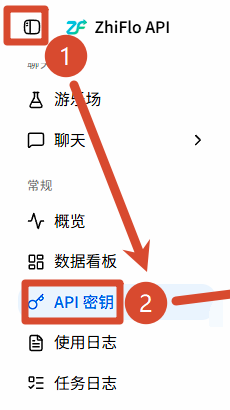
The highlighted sidebar item is API Keys. The page shows your existing Tokens or an empty list.
-
Select Create API Key.
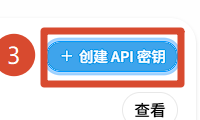
The highlighted control is Create API Key.
-
Enter a name that identifies its purpose.
Include the device and client, such as “Desktop Cherry Studio.” Do not put the Token itself in the name.
-
Select the group you intend to use.
If only one group is available, use it rather than switching groups at random.
-
Choose a finite expiration.
Give yourself enough time for the intended use and rotate the Token before it expires.
-
Choose a finite quota.
Set a controlled limit based on the expected task. You can change your approach later; an unlimited quota increases the impact of a leak.
-
Create the Token.
The creation dialog displays the new Token.
-
Copy the Token.
Store it in a trusted password manager. Do not put it in chat, screenshots, shared documents, browser URLs, or a source repository.
The list should now show the new name, expiration, and quota. When a client asks for API Key, API Token, or Token, enter this value—not your ZhiFlo sign-in password.
2. Use one Token per device or client
Section titled “2. Use one Token per device or client”For example, use separate Tokens for Codex on a laptop, Cherry Studio on a desktop, and a script on a home server. This lets you:
- identify where usage came from;
- revoke the credential for one lost device;
- set different expiration and quota limits;
- rotate one client without interrupting the others.
Avoid sharing one Token across all devices as the default setup.
3. Rotate a Token before it expires
Section titled “3. Rotate a Token before it expires”- Create a new Token for the same purpose.
- Update the credential in one client.
- Send a short message that cannot modify data.
- Confirm that the client returns a reply.
- Revoke the old Token.
If the updated client returns 401, check for missing characters or surrounding whitespace and confirm that you used its Token field. You can temporarily restore the old value if it has not yet been revoked.
4. Respond to a leak or lost device
Section titled “4. Respond to a leak or lost device”Revoke the affected Token from API Keys immediately, then create a replacement for any client that still needs access. Do not wait for the quota to run out, and never send the full Token to someone who offers to check it.
Requests using the revoked Token should stop authenticating. If several clients stop at the same time, they were sharing a credential; give each one a separate replacement.
Next: Copy the correct model ID.